
Keep QuickBooks in the accounting workflow. Add the construction workflow around it.
Crux does not replace QuickBooks®. Your construction team does intake, project context, approval, and job-level visibility in Crux. Approved invoices sync to QuickBooks, which stays the accounting system of record.
Vendor invoices and project costs arriving from the field, the office, and the inbox.
Project and cost context added, an approver assigned, the decision recorded.
One approved invoice carrying its project, cost, and approval context.

The ledger, accounts payable, and the financial statements stay here.
The same boundary, three different worries.
The question "are you replacing QuickBooks" means something different depending on who is asking it.
Am I going to be keying the same invoice twice?
Crux prepares each approved item consistently, with the context already attached, so the accounting handoff starts from something complete instead of something that needs chasing.
- Items arrive at accounting already coded and already approved.
- What has not gone through is visible, rather than discovered later.
- Result: less repeat handling, and a shorter list of things to chase.
Am I betting the business on ripping out my accounting system?
No. QuickBooks stays exactly where it is, and stays the official ledger. Crux adds the construction workflow that currently runs on email and spreadsheets.
- Your accountant and your bank keep working from QuickBooks.
- The operational approvals feeding accounting stop being invisible.
- Result: a construction layer added, not an accounting migration.
Do I have to learn the accounting system to do my job?
No. Project managers work in Crux, in project and cost terms. The accounting system is the office's tool, and the handoff happens without pulling the field into it.
- Approve and answer questions in project terms, not accounting terms.
- See whether an approved item has moved on, without asking the office.
- Result: fewer interruptions in both directions.
QuickBooks does accounting. It was never meant to run a jobsite.
Crux does not replace QuickBooks. The two do different jobs. The construction workflow that happens before an invoice is ready for accounting runs in Crux. The accounting record stays in QuickBooks.
The operating layer, before accounting
- Invoice intake from the field, the office, and the inbox
- Project assignment and cost-code context
- Approval ownership and the recorded decision
- Committed and approved cost against the job budget
- Field and office questions, holds, and returns
- Project visibility before the accounting close
The ledger, kept where it belongs
- Accounts payable and the ledger
- Paying vendors
- Accounting transactions and posted cost
- Financial statements your CPA and bank rely on
Crux handles the operational work. When an item is approved and complete, it goes to QuickBooks, where the accounting record is kept. Two different jobs, not the same job done twice. Crux works with QuickBooks: that is a technical relationship with a product, not a commercial relationship with Intuit.
QuickBooks is a registered trademark of Intuit Inc. Crux is independent and not affiliated with, endorsed by, sponsored by, or certified by Intuit. Nothing on this page should be read as a partnership, certification, or sponsorship.
From an invoice in a truck to a record in your books.
Six stages. The first four happen in Crux, which is where the construction work is. The last two are the boundary with accounting.
The invoice enters Crux
- Where the item is
- In Crux intake. It is not in the accounting system and has not been posted anywhere.
- Who is responsible
- Whoever received it, with the office holding intake.
- What information exists
- The vendor document and whatever arrived with it, which is often not enough.
- Ready for accounting
- No. Nothing has been reviewed, coded, or approved.
- What happens next
- Project and cost context is attached so the item can be judged.
Project and financial context is added
- Where the item is
- Still in Crux, now as a structured record rather than a document.
- Who is responsible
- The office, with the project team supplying what is missing.
- What information exists
- Vendor, invoice details, amount, project, cost code, and any supporting documents.
- Ready for accounting
- Not yet. Context is present, but no one has decided.
- What happens next
- The item is routed to whoever owns the decision.
The approval is completed
- Where the item is
- In Crux, with a decision recorded against it.
- Who is responsible
- The assigned approver, named on the record.
- What information exists
- The full item plus who decided, when, and the reason attached to the decision.
- Ready for accounting
- Approved items are the ones eligible to move. Returned or held items stay put.
- What happens next
- The approved item is assembled for the accounting handoff.
The item is prepared for accounting
- Where the item is
- In Crux, complete, with nothing outstanding against it.
- Who is responsible
- The controller or office manager.
- What information exists
- One approved item carrying its vendor, amount, project, cost, and approval facts together.
- Ready for accounting
- Yes. This is the point of the operational workflow.
- What happens next
- Approved invoices sync to QuickBooks.
The approved item is handed to QuickBooks
- Where the item is
- Crossing the boundary from the operating layer to the accounting system.
- Who is responsible
- Accounting owns what happens in QuickBooks from here.
- What information exists
- The approved item, and the Crux record it came from, which is kept.
- Ready for accounting
- QuickBooks holds the accounting record. Crux does not keep a competing ledger.
- What happens next
- The result of the handoff is confirmed, or the item comes back for a person to resolve.
Confirmed, or resolved by a person
- Where the item is
- Either recorded in QuickBooks, or still in Crux waiting on someone.
- Who is responsible
- A named person in the office. Crux does not resolve it on its own.
- What information exists
- The approval history and context are preserved either way. Nothing is discarded.
- Ready for accounting
- An item that did not complete the handoff has not created an accounting record.
- What happens next
- The office corrects what is missing and the item is handed off again.
The trigger and timing of the handoff, and the exact behaviour on each edition and configuration, are confirmed for your setup. This page does not publish a synchronization schedule, a latency figure, or an automation claim.
What an approved item carries, and what is settled per setup.
Crux assembles the accounting-relevant facts on the approved item. The exact map into QuickBooks depends on your chart of accounts, your job structure, and your edition, so it is confirmed with you rather than published as a fixed table.
The structured Crux record carries the accounting-relevant facts: vendor, invoice number, invoice date, amount, project, cost code, commitment or PO, supporting documents, assigned approver, and status. This is the same set the intake and approval workflow uses, and it is what makes an item complete enough to hand to accounting.
How those facts map into your books depends on your setup: vendor matching, job or customer matching, account and cost-code mapping, attachment handling, class or location use, and duplicate handling all follow your chart of accounts and job structure. Crux deliberately does not publish a universal field map, because a table that was true for one contractor would be misleading for another. It is worked through against your actual QuickBooks file and confirmed during onboarding, not assumed.
If you need the specific integration detail for your edition and configuration, ask for it in the demo. It is a real document, prepared against your setup.
Your ledger should not be a filing cabinet for operational context.
A lot of what a construction team produces around an invoice is genuinely useful and genuinely does not belong in the accounting record. Crux keeps it, so QuickBooks stays clean.
Who was assigned the decision and who actually made it. Operationally essential, and not an accounting field.
Why something was sent back or paused. It explains the workflow, not the ledger entry.
Where an item sits in the operational process, which is a different question from whether it has been posted.
The missing project, the unanswered question, the item nobody has claimed yet. It stays visible until someone deals with it.
The record of what was decided and when, kept with the item after it has moved on to accounting.
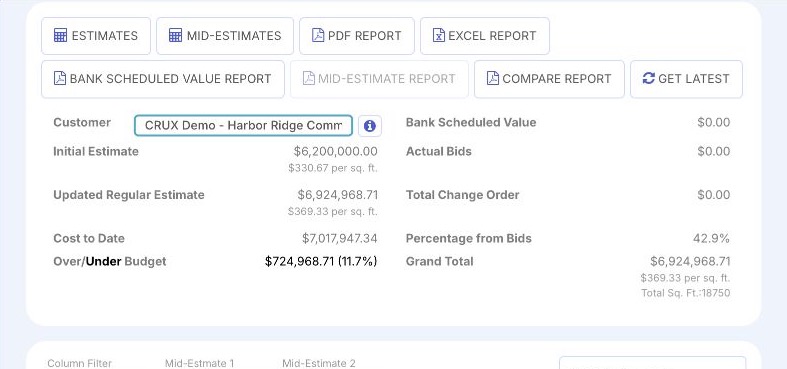
Budget against committed and approved cost by project and category. A construction view, not a financial statement.
This is the point of the boundary. Crux and QuickBooks are not doing the same job in two places. They are doing two different jobs, and each keeps what belongs to it.
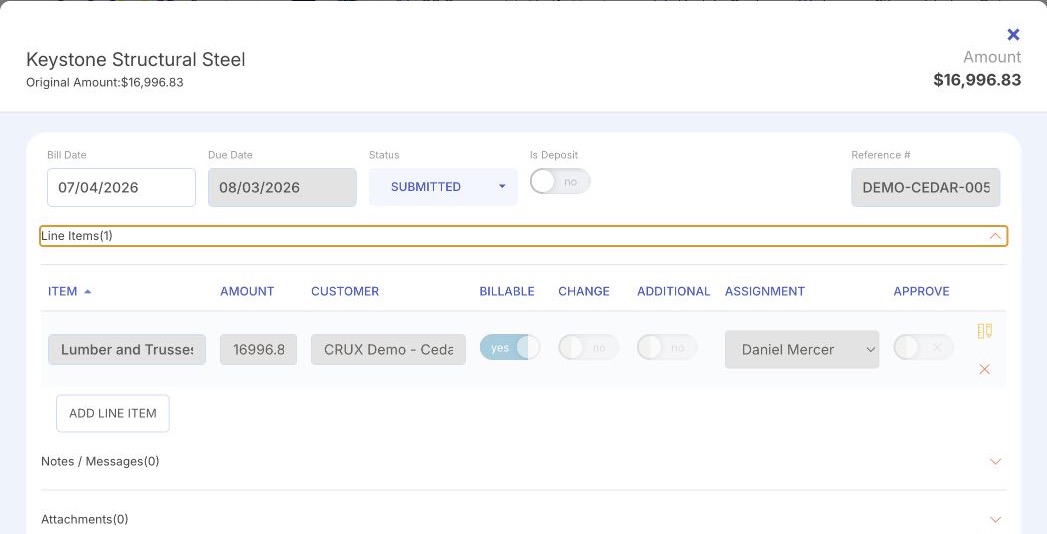
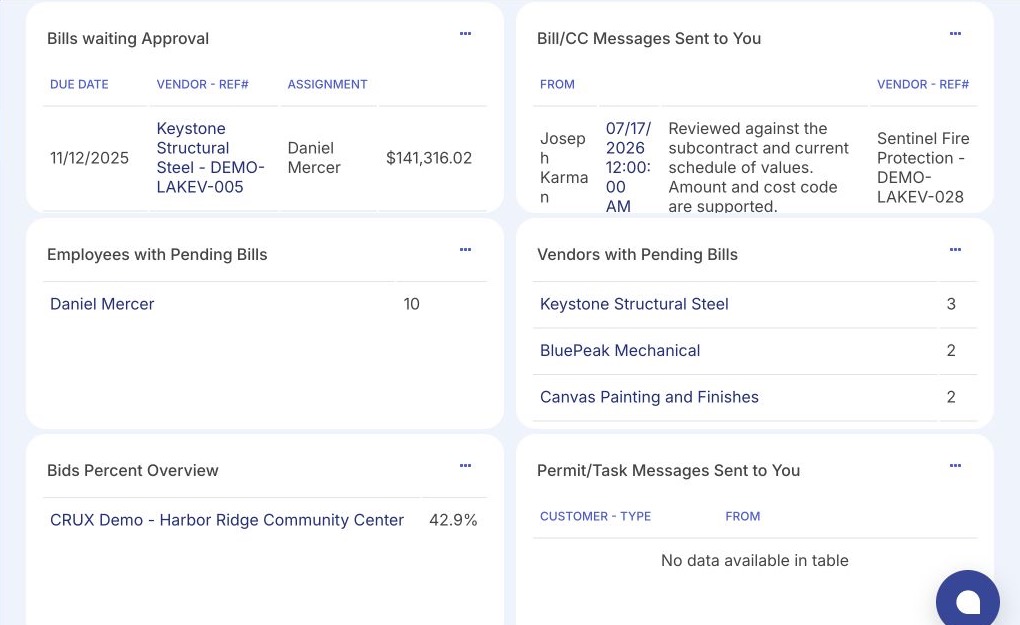
The Crux side of the boundary, in the actual product.
Product interface shown with illustrative data. Every screen on this page is a Crux screen: there is no QuickBooks interface shown anywhere, real or reconstructed.
Crux does not have an approved capture of a synchronization status view, so none is shown and none has been mocked up. The handoff diagram at the top of this page is labelled as an explanatory diagram for that reason. A truthful sync-status capture is a documented outstanding product capture.
QuickBooks Online and QuickBooks Desktop.
Crux works with both. They are different products, so they do not behave identically, and this page does not pretend otherwise.
Crux connects to QuickBooks Online as the accounting system of record for approved financial activity. The connection is established with you during onboarding, against your own company file and your own permissions.
Crux also works with QuickBooks Desktop. Desktop is a different product with a different connection model, so the setup and some of the workflow detail differ from Online. Those differences are walked through before anything is connected.
Support depends on your edition, version, and configuration, and is confirmed for your environment rather than assumed. This page does not publish connection instructions, authorization details, or a version matrix. Ask for the current specifics for your setup in the demo.
An item that cannot cross the boundary does not vanish.
Integrations fail. A vendor does not match, a job is not set up, a field is missing. What matters is what the system does about it, and who is expected to act.
If the handoff does not complete, the approved item and all of its context remain in Crux. It does not disappear into a log file, and it is not silently dropped.
An item that did not complete the handoff has not posted to your books. The absence is visible in Crux rather than being something you discover at month-end.
Someone in the office corrects what is missing and the item is handed off again. Crux does not repair the problem on its own, and it does not decide on your behalf what the right vendor or job was.
The decision, the approver, the reason, and the project context survive the failure. You are not re-approving anything to get it moving again.
The specific status labels your team sees, and the exact handling of each condition, are confirmed for your setup. Crux does not claim autonomous correction, automatic vendor or job creation, or guaranteed duplicate prevention.
See how Crux fits around your QuickBooks workflow.
A working session maps how invoices reach your books today, finds where the same information is handled more than once, and shows the Crux operating layer and where the QuickBooks handoff sits. It is a conversation about your process. It is not a production integration, a credential setup, a data migration, an accounting cleanup, a completed field mapping, or a connection to your customer data.
A working session, not a hard sell. Or see what this has produced before you book.